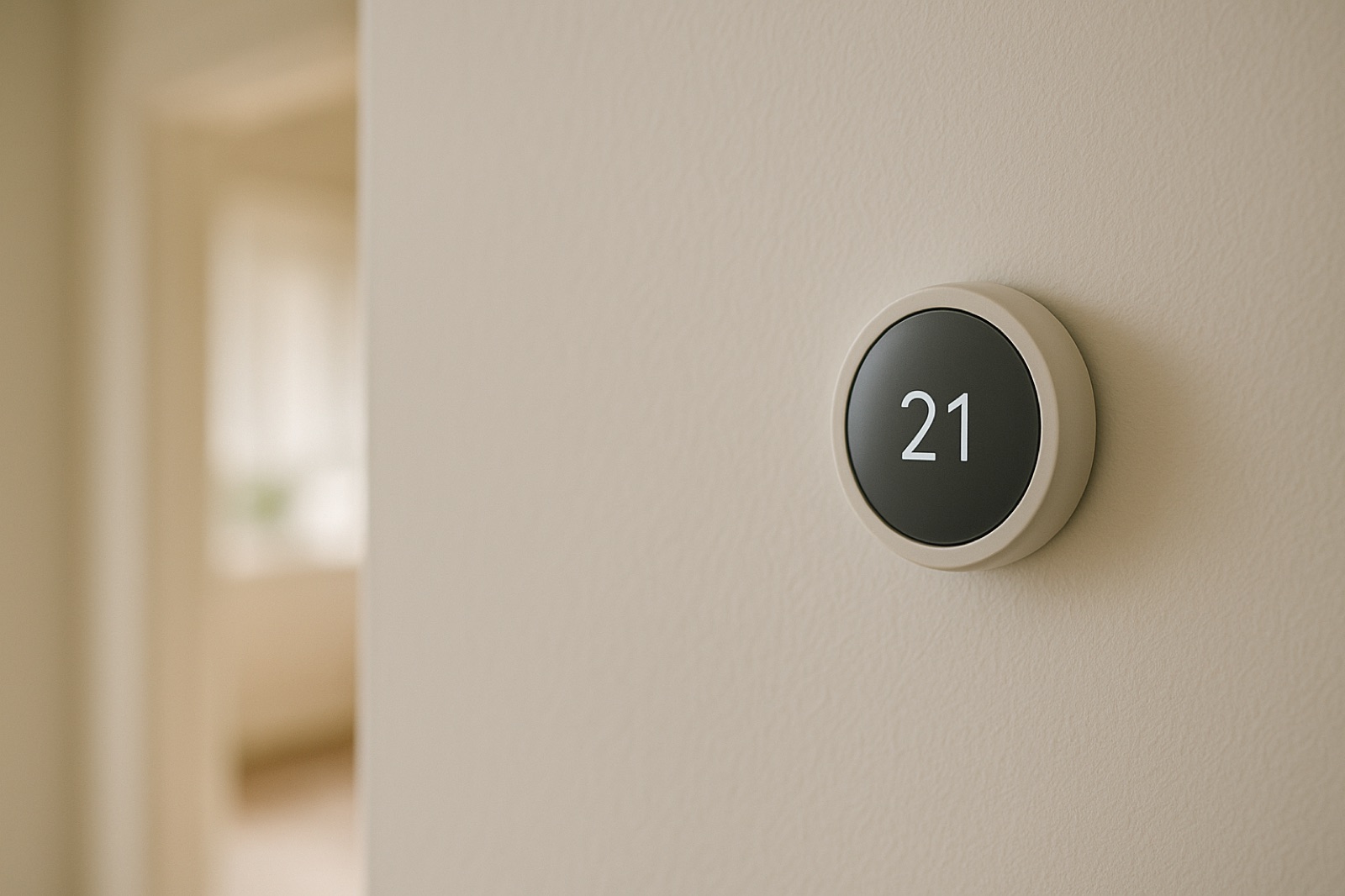
Most homeowners still think of a thermostat as a dial on the wall. Increasingly it is also a login. A smart thermostat, a Wi-Fi gateway, or a building automation front end keeps a list of accounts, and each account can usually change a setpoint, a schedule, or a mode from anywhere with a signal. That list of people with access is part of the system, just as much as the condenser or the return grille.
ACHR News recently covered Carrier's enhanced i-Vu system, which it describes as bringing equipment, controls, and operational data into a browser-based platform for facility teams. The summary says the software helps those teams monitor conditions, investigate issues, and manage HVAC operations. Those are commercial words, but the underlying idea carries down to a house. Whoever can open that browser session can change how the equipment runs.
Write Down Every Account
Start with a plain list. Include yourself, a spouse or partner, any adult child who helps, the installer, and any service company that holds remote access. For each name, note what that person can change, whether they can invite others, and how you remove them. Most thermostat apps have a sharing or users screen, and most gateways list connected devices. Check both. If a name appears that you cannot identify, remove it first and sort out the question afterward.
Then look at the passwords. Change any default password the first time you set up a device, and use a unique password for the account that controls the equipment. Turn on two-factor sign-in where the app offers it. A shared family password written on a sticky note is the most common weak point, and it is also the easiest to fix in ten minutes.
Set the Range Before the Emergency
Many thermostats let you set heating and cooling limits, so a guest or a helper cannot push the house into an extreme range. The feature varies by brand, so check the manual or app settings. Record the normal operating range you want, such as the heating and cooling setpoints for occupied and unoccupied hours, on a card kept with the home binder. When someone asks to adjust the house, the card answers the question without a phone call.
Plan for Helpers Who Visit
A family may arrange non-medical in-home support for older adults in St. Louis, and a caregiver who visits regularly may be the person who notices a room running hot or a fan that never seems to stop. Decide in advance what that person may do. In many households the right answer is report-only: they note the reading, text the family, and leave the controls alone. If you do want a helper to make changes, give them a limited account rather than your own login, and remove it when the arrangement ends.
Verify Before You Adjust
Access is only half of the problem. Advice from a forum, a chatbot, or a neighbor can push a setting in the wrong direction. ACHR News recently covered the use of AI to troubleshoot refrigeration systems, and its summary makes the same point about any quick answer: such answers "should always be verified before making repairs or adjustments." Check a suggested change against the manufacturer's manual and the installer's notes before you apply it.
When a setpoint changes overnight without anyone admitting it, look at the schedule history or event log before you assume a glitch. Many systems record who or what made a change, and that record is often more useful than the setting itself.
Close the Account When the Job Ends
When a helper leaves, a relative moves out, or an installer's contract finishes, remove that account the same day. Rotate any shared password they knew, and check the guest network on the router. Keep a one-page sheet listing each account, its permissions, and the date it was last reviewed. Review it each season, along with your filter change and your condensate check.
A thermostat with careful settings but an open door is still an open system. Treat the login list as part of the mechanical record, and it will rarely surprise you.
Further reading: non-medical in-home support for older adults in St. Louis.